
Creating and Removing Program Assignments
The Employee Assignments page allows you to create and remove program assignments for an employee.
A program is a set of TrainTraq courses used to facilitate assigning several courses at once. The courses do not need to be thematically related, but they can be. Program creation is limited to TrainTraq administrators, if you would like a program to be created reach out to your System Training Coordinator.
The following section describes how to make a one-time, manual program assignment for an employee.
NOTE: Manual program assignments are immediate and are non-recurring. Automated and/or recurring program assignments are not available. If you want to set up automatic and/or recurring course assignments for a select group of employees, contact your system member’s training coordinator for more information.
To create a new program assignment:
- Click the Assignments option located in the Employee tab menu. The Employee Assignments page displays.
- Select an employee using the Employee Search. The Employee Assignments page populates with the selected employee’s details and assignments.
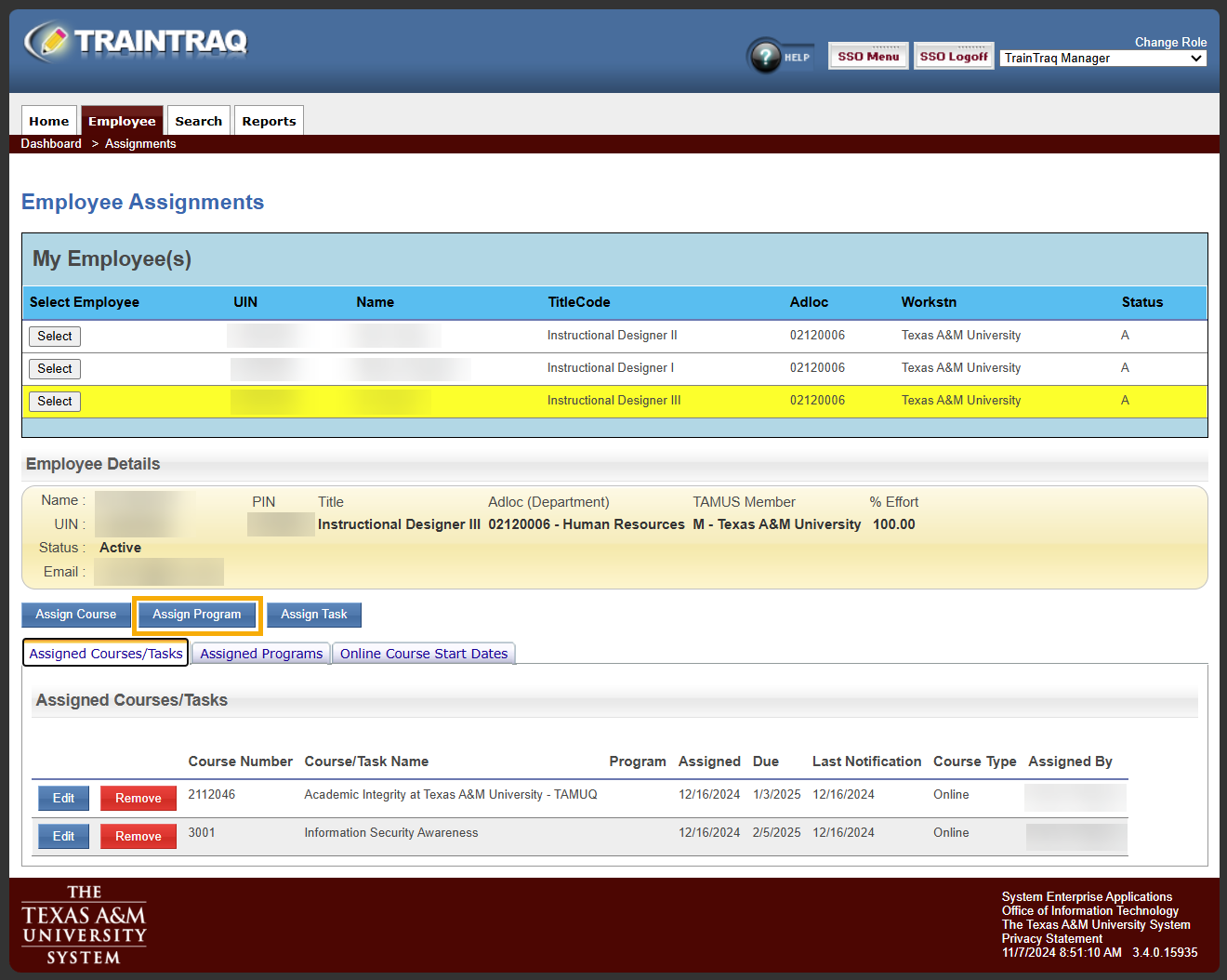
- Click the Assign Program button located below the Employee Details section. The Program Assignment Details page displays.
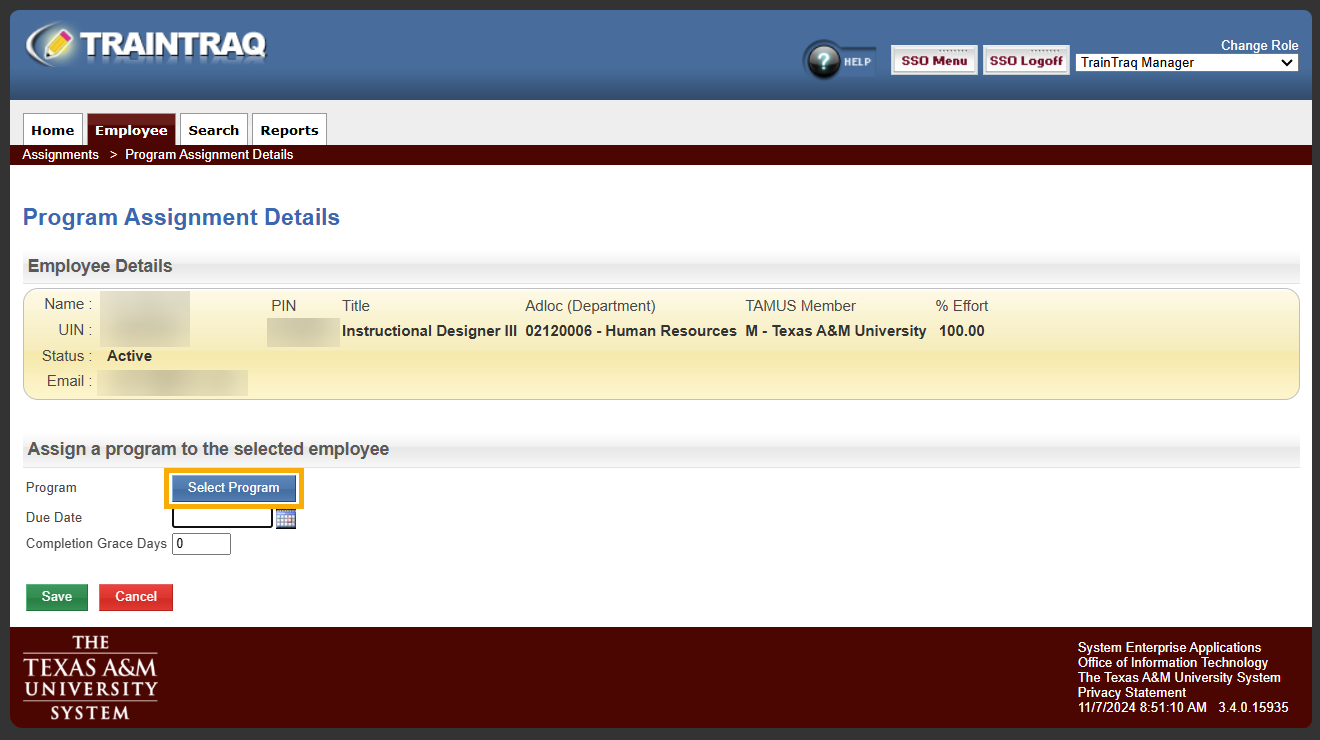
- Click the Select Program The Program Search pop-up window displays.

- Locate the desired program by either scrolling/paging through the program listing or by entering information into the search section and clicking the Search button.
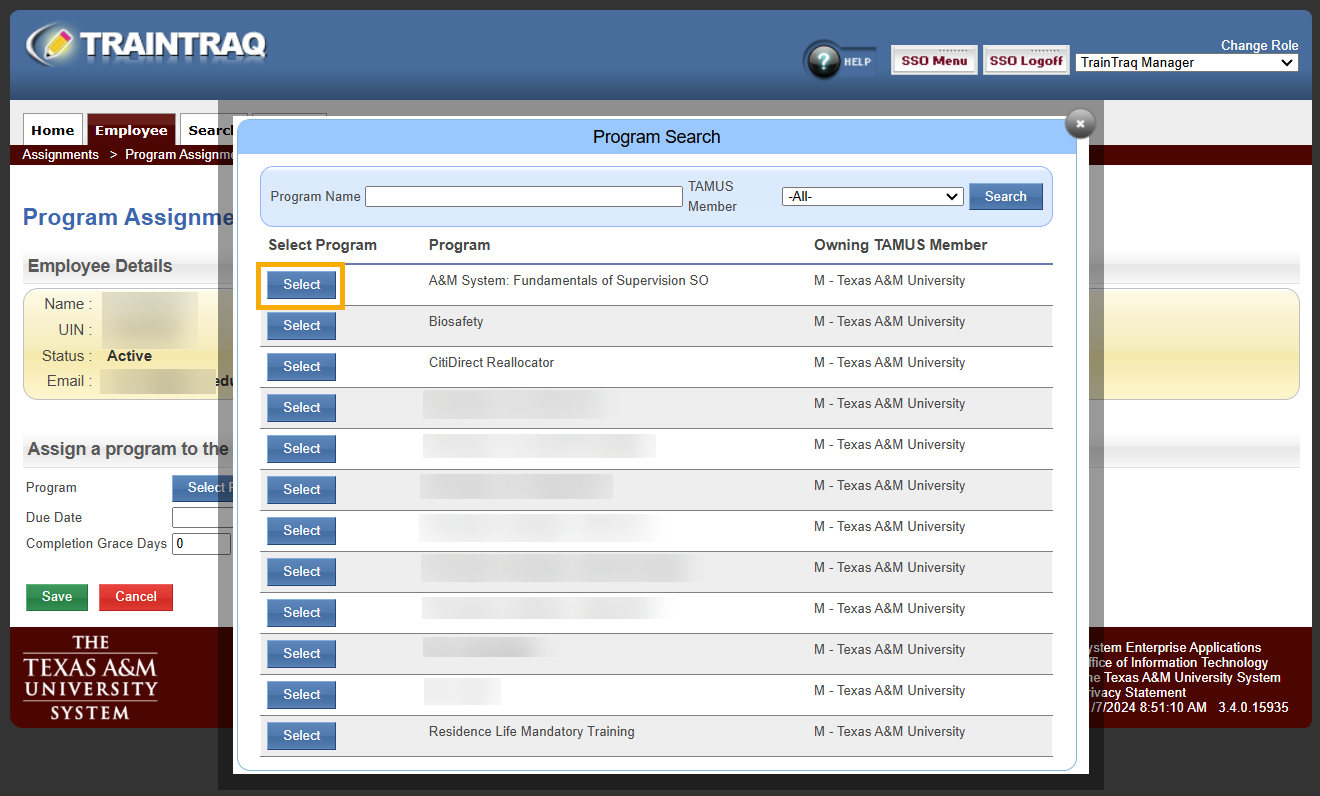
- Click the Select button located to the left of the program you want to assign. The selected program number and title display in the Program field.
- Enter the date the program is due to be complete into the Due Date field. If typed, the date must be in MM/DD/YYYY format. Alternatively, you can click the Calendar icon to the right of the field and select the date from the calendar displayed.
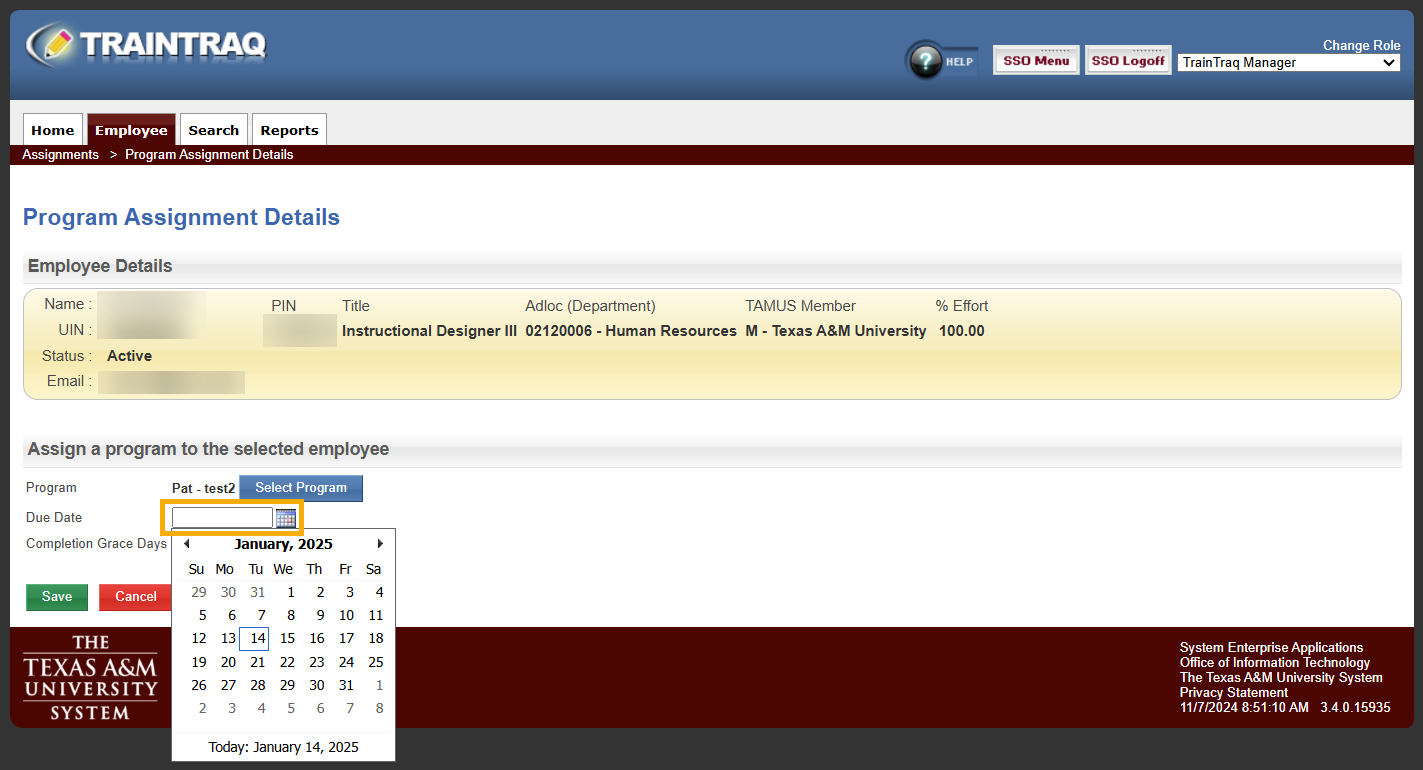
- Enter the appropriate number of days into the Completion Grace Days field. NOTE: This field indicates how long the system should look back through an employee’s transcript to identify courses included in the program which have previously been completed and should be accepted as credit toward the program completion.

- Click the Save The Employee Assignments page updates to display the assignment information you provided and a notification will appear at the top of the page to let you know that the assignment was created successfully, and the courses contained in the newly assigned program will display in the Assigned Courses/Tasks section of the employee’s Home Page.
 NOTE: After a manual assignment is created, the employee will receive email notification of the new assignment based on the notification rule(s) designated for each course within the program.
Additional Information on program assignments
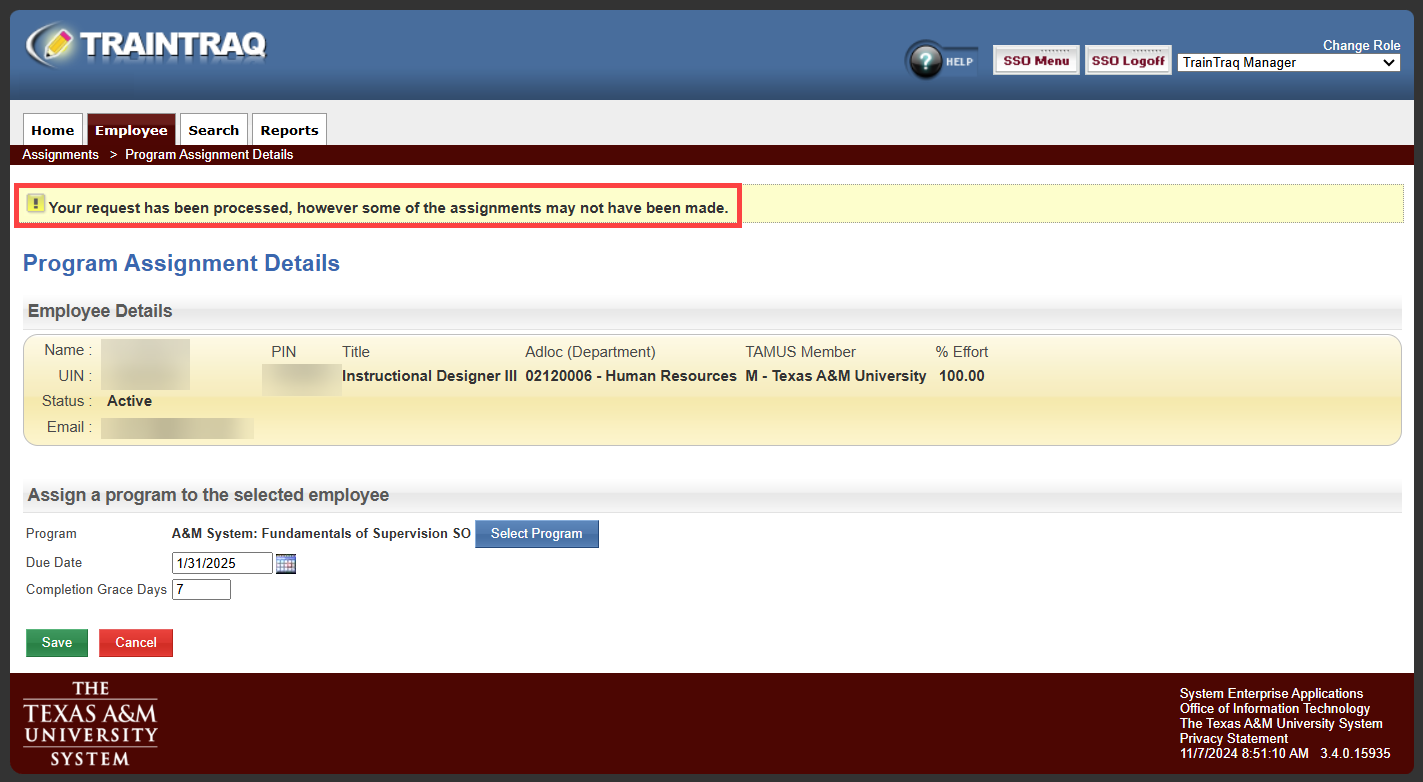
If you complete the steps above to create a manual program assignment and then see an alert message at the top of the Program Assignment Details page, navigate to the System Log page to check for information on the alert shown. Many times, this is an indication that part of the assignment was not made because a course within the program was either already assigned or had already been completed within the grace day period. However, it may also indicate that the assignment was not processed. For example, programs that include a course no longer active cannot be assigned.
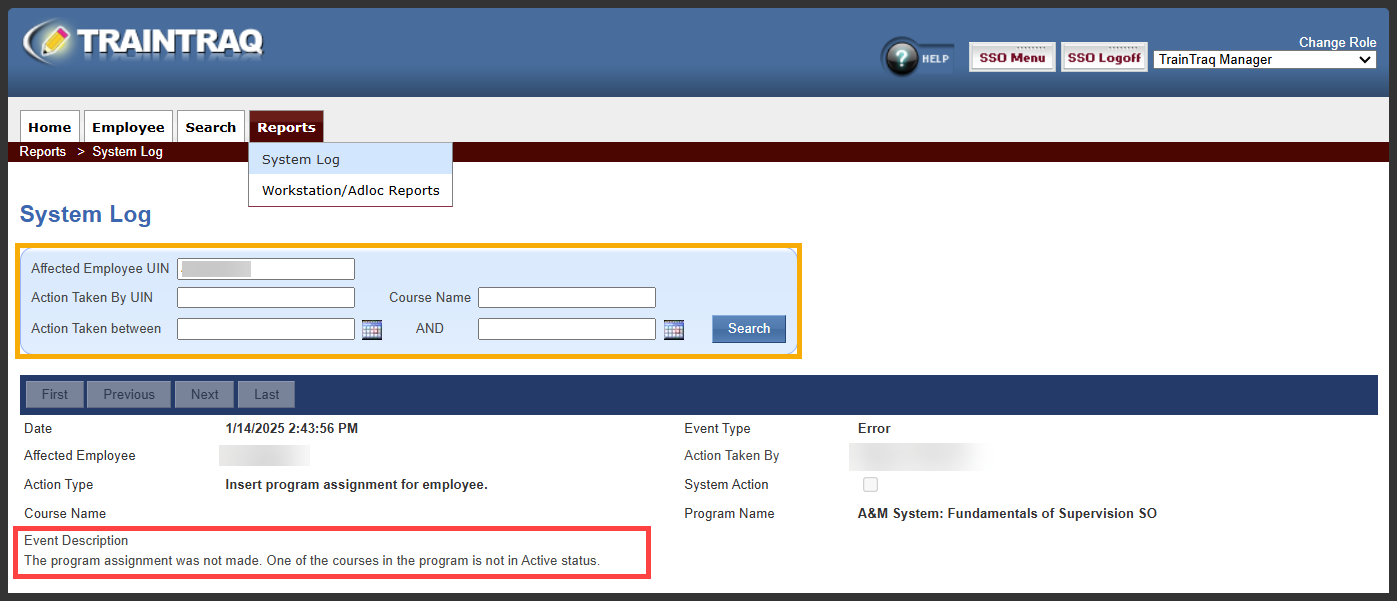
To see details on the alert, select the System Log option located in the Reports tab menu, enter the employee’s UIN in the Affected Employee UIN field, and then read the details of the entry shown on the page.
If a manual program assignment is created incorrectly or becomes unnecessary, it is possible to remove the assignment.
NOTE: Automatically generated assignments based on the established assignment rules for a course cannot be permanently removed since removal of such an assignment will cause the assignment engine to re-assign the program the following day.
To remove a program assignment:
- From the Employee Assignments page, select an employee.
- Click the Assigned Programs tab to view all of the programs assigned to the employee.
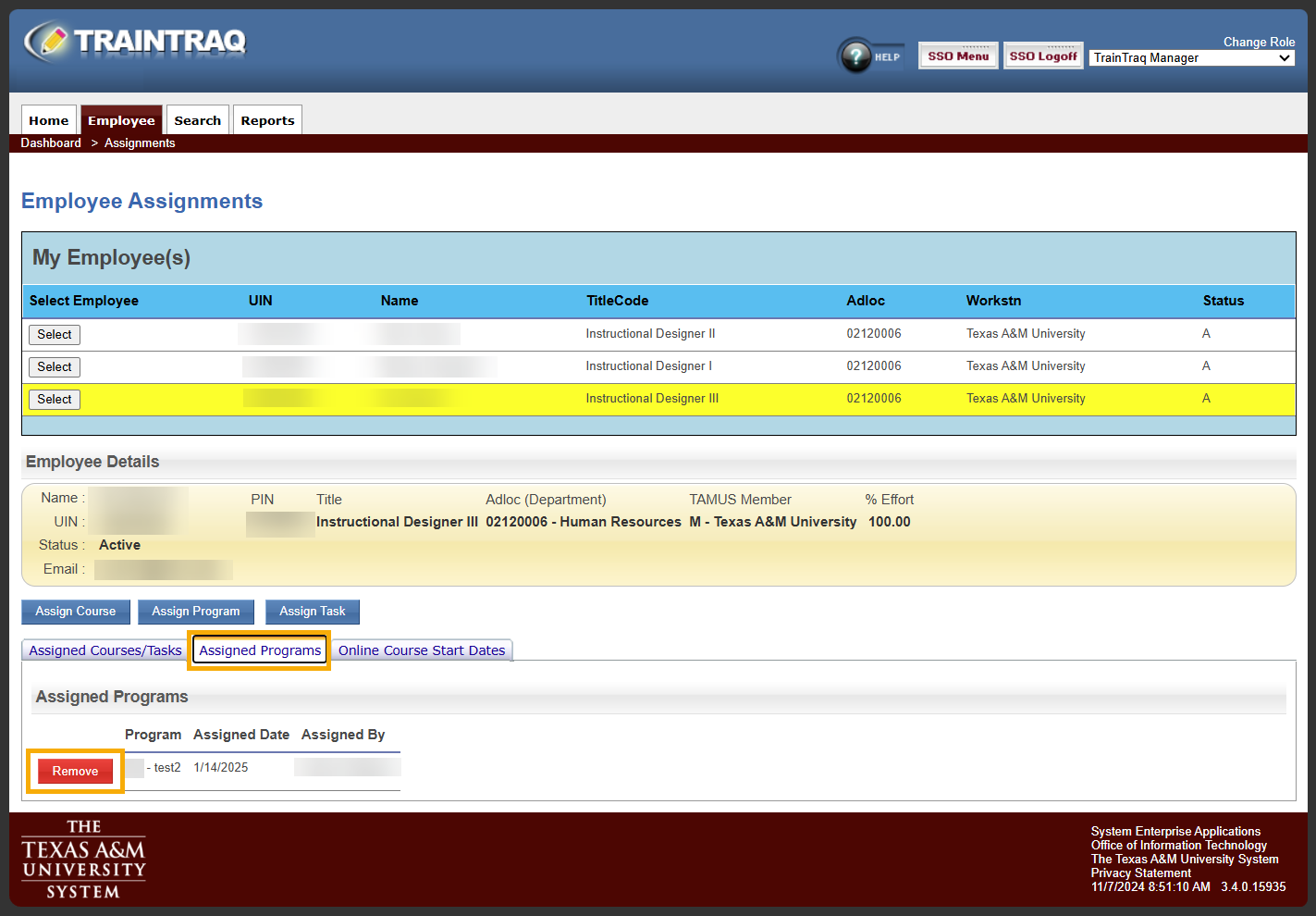
- Locate the program you want to remove. Click the Remove button located to the left of the program you wish to remove.
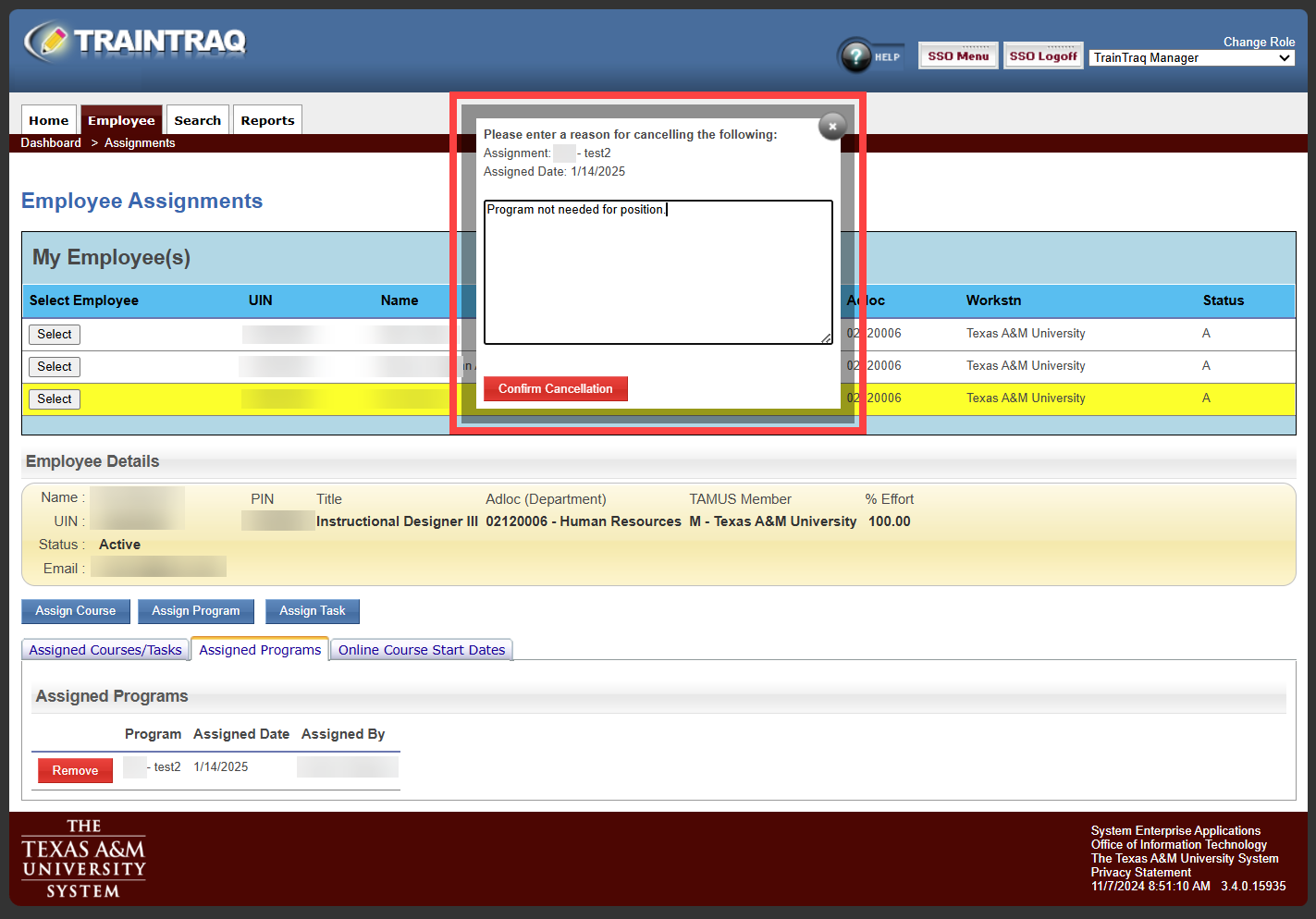
- This will open a pop-up window which requires you to enter a reason for cancelling the assignment. After you enter the reason for cancellation click the Confirm Cancellation button.
- The courses included in the program assignment are removed from the Assigned Programs tab of the Employee Assignments page and will no longer display in the Assigned Courses/Tasks section of the employee’s Home Page.
Note: If the employee has completed any of the courses assigned as part of the program, their completions will not be removed. Only remaining assignments that were part of the program will be removed.