
This job aid outlines the process for a Project Manager to create a project plan to assign tasks to a project in Workday.
Create Project Plan
Last updated on January 13, 2023
Page Loading...Checking SSO..

Prerequisites
The project exists.
Getting Started
- Search for the Create Project Plan task in the Search Bar and select it.

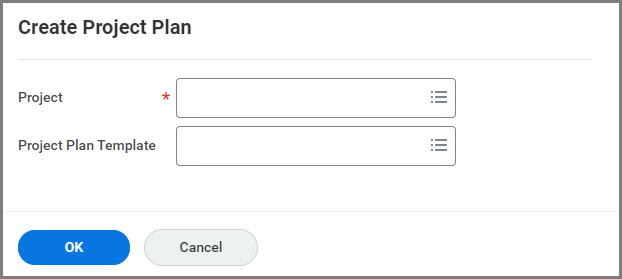
- On the Create Project Plan page, select a Project to add the project plan to.
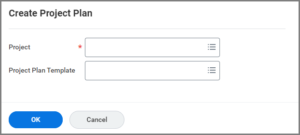
- Select OK.
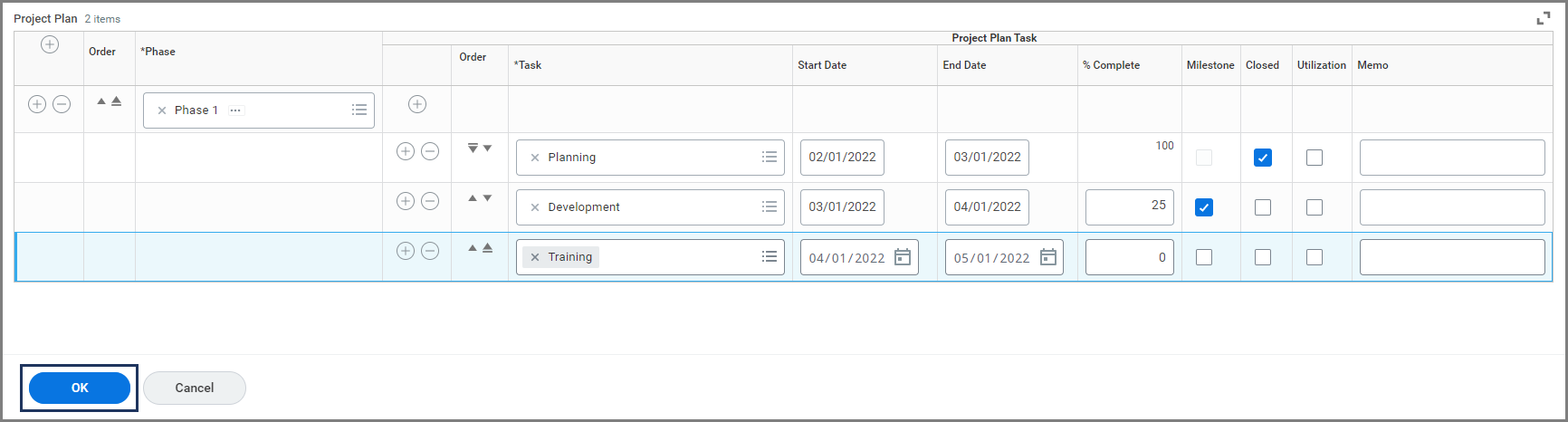
- To the left of the Phase column, select the Plus Sign (+) to add a phase.
- Select Phase 1 for the Phase field.

- To the left of the Task column, select the Plus Sign (+) icon to add a task.
- In the Task field, choose a task from the drop-down list.



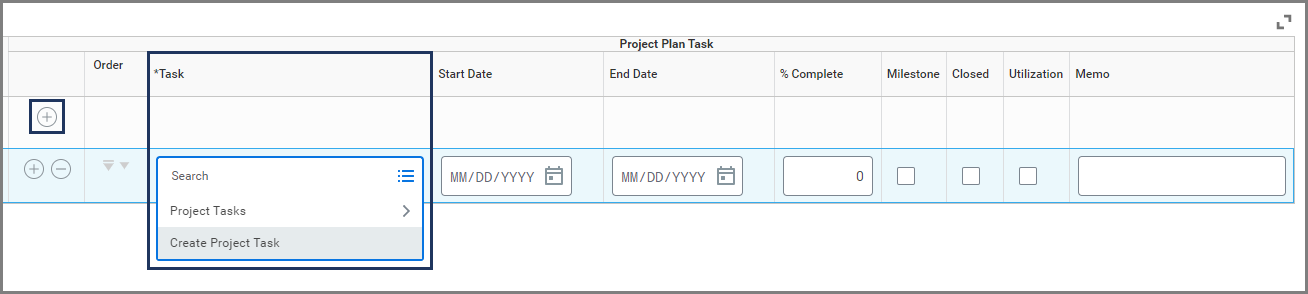
Note: If the Task you would like to add does not exist, select Create Project Task from the drop-down list. On the Create Project Task page, enter the Project Task Name and select OK.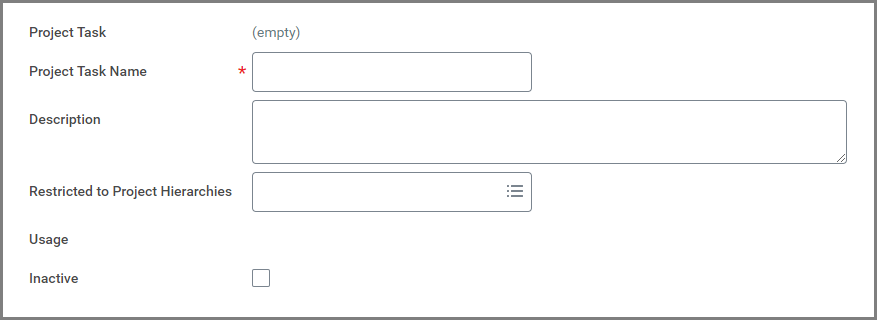
- Add additional tasks, if needed.
- Once all the task have been entered, select OK to save the project plan.

- Your project plan will display.


This completes the Create Project Plan process.