
This job aid outlines the process for Absence Partners to place an Employee on a leave of absence.
Place Worker on Leave of Absence
Last updated on October 3, 2025
Page Loading...Checking SSO..

Important Information
- A leave of absence should be used when the absence is full-time, continuous, unpaid and for a duration of 30 days or more. This is an unpaid, job-protected leave status.
- If an Employee has any eligible paid time off, a leave of absence should not be processed. Please submit a time off request instead.
WARNING: If an Employee will not return to work, you should complete the Return Worker from Leave business process before Termination is initiated to avoid downstream corrections that require administrative support and additional work. See the Return Worker from Leave job aid for instructions.
Getting Started
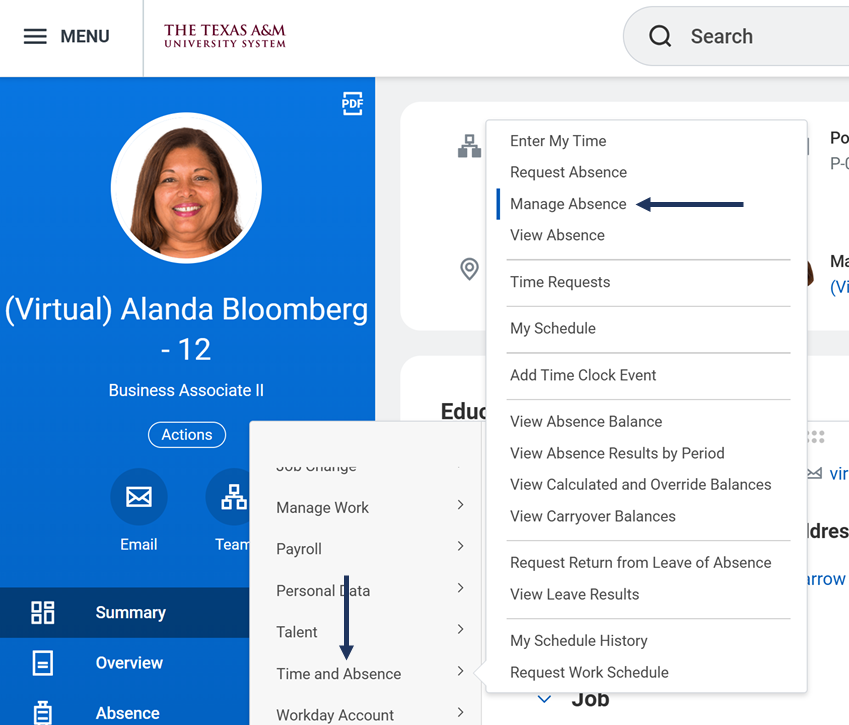
- Navigate to the Employee’s Worker Profile and select Actions > Time and Absence > Manage Absence.
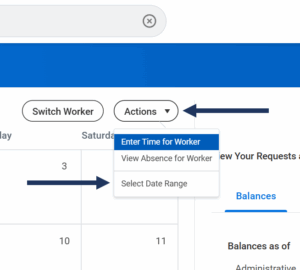
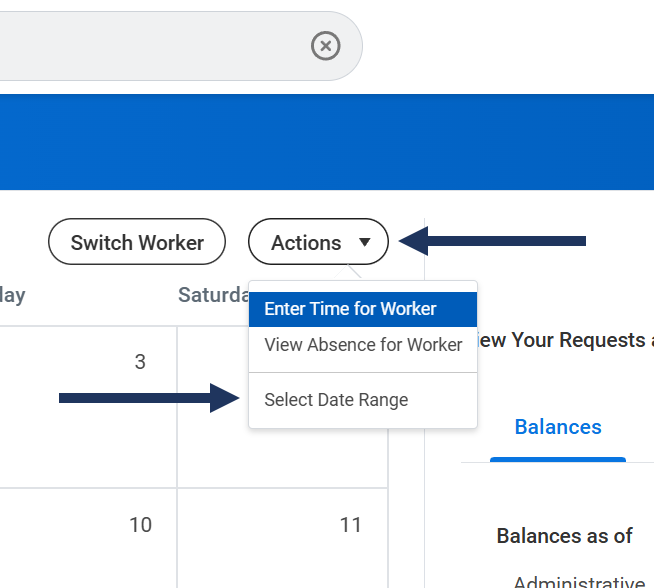
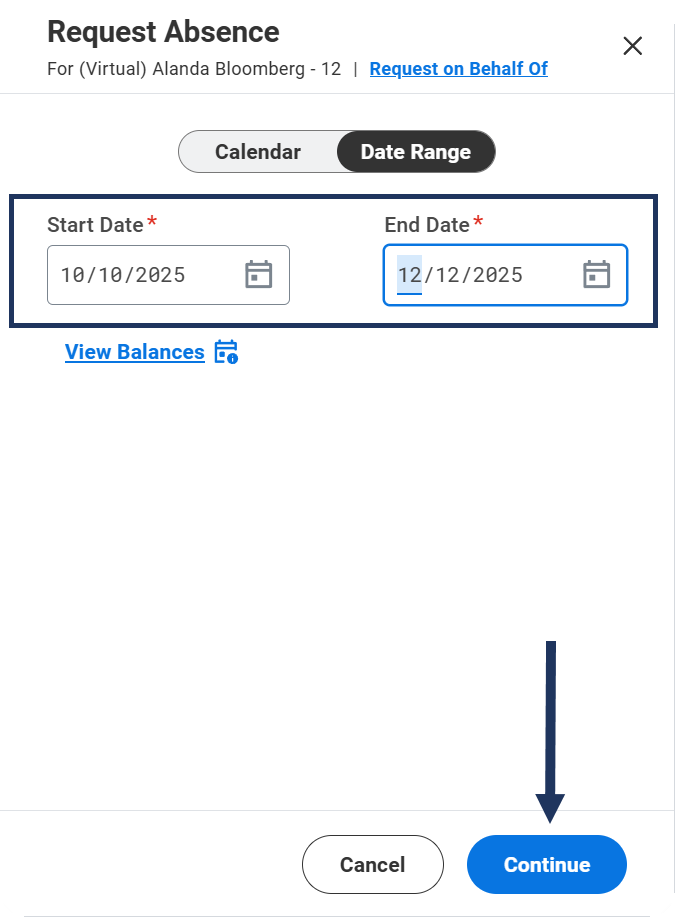
- From the Actions menu on the Manage Absence calendar, select Select Date Range.
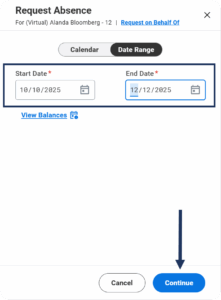
- Enter the Start Date and End Date for the worker’s FMLA Leave of Absence, which needs to be more than 30 days.
- Select Continue.
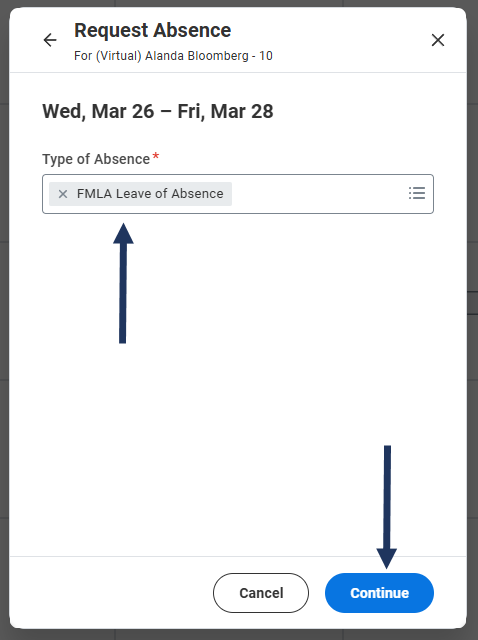
- On the Request Absence pop-up select the Type of Absence the employee will be using then select Continue.
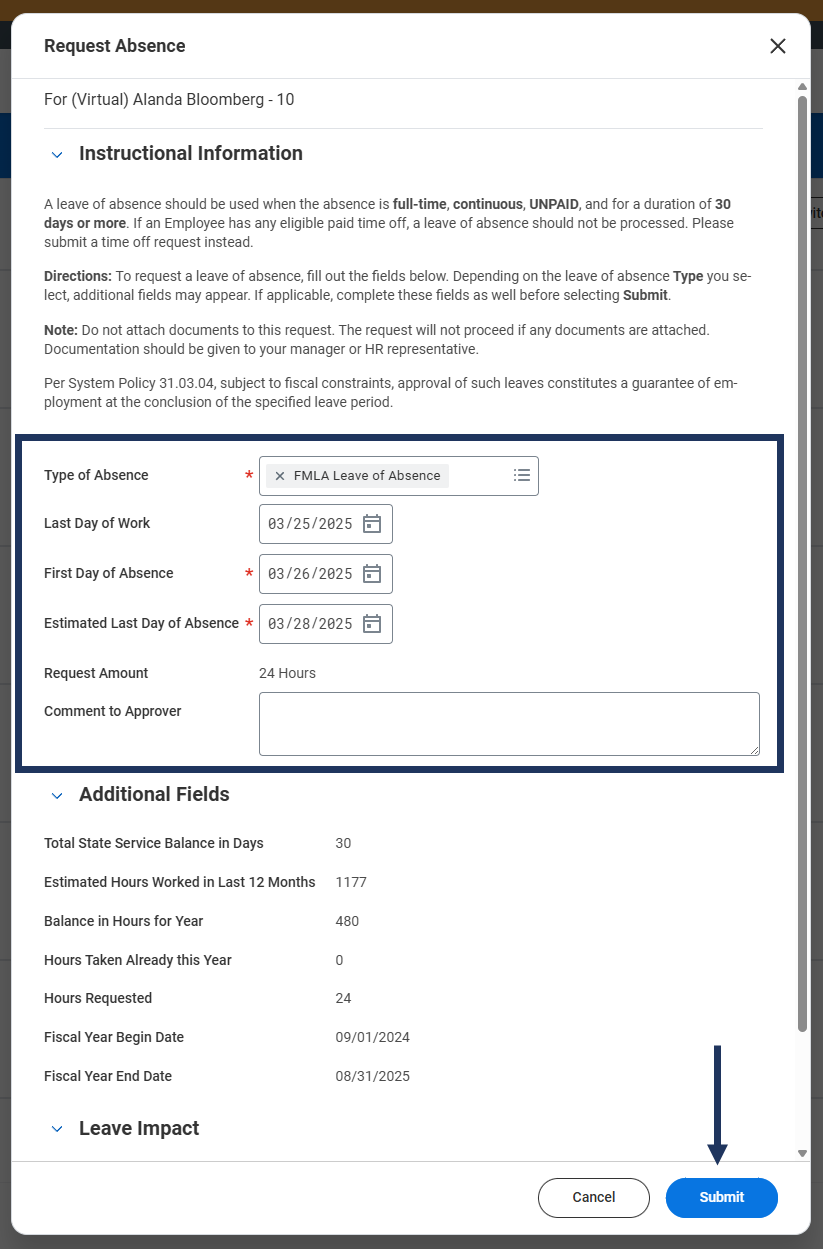
- On the next screen, fill in the following fields:
- Type of Absence. Auto-populates based on the Type of Absence selected.
- Last Day of Work. This field should be auto-populated based on the First Day of Absence. If applicable, select a different date.
- First Day of Absence. Auto-populates based on the date selected.
- Estimated Last Day of Absence. This is only an estimate.
Note: For FMLA Leave and Parental Leave Review the Additional Fields. The Additional Fields on the Leave Request provide information on balances for hours and state service days in addition to hours requested and hours taken. Parental Leave requires a birth or adoption date to be entered.
- Review the Leave Impacts which will appear based on the Type selected. These are the various areas that will be impacted and cannot be edited.
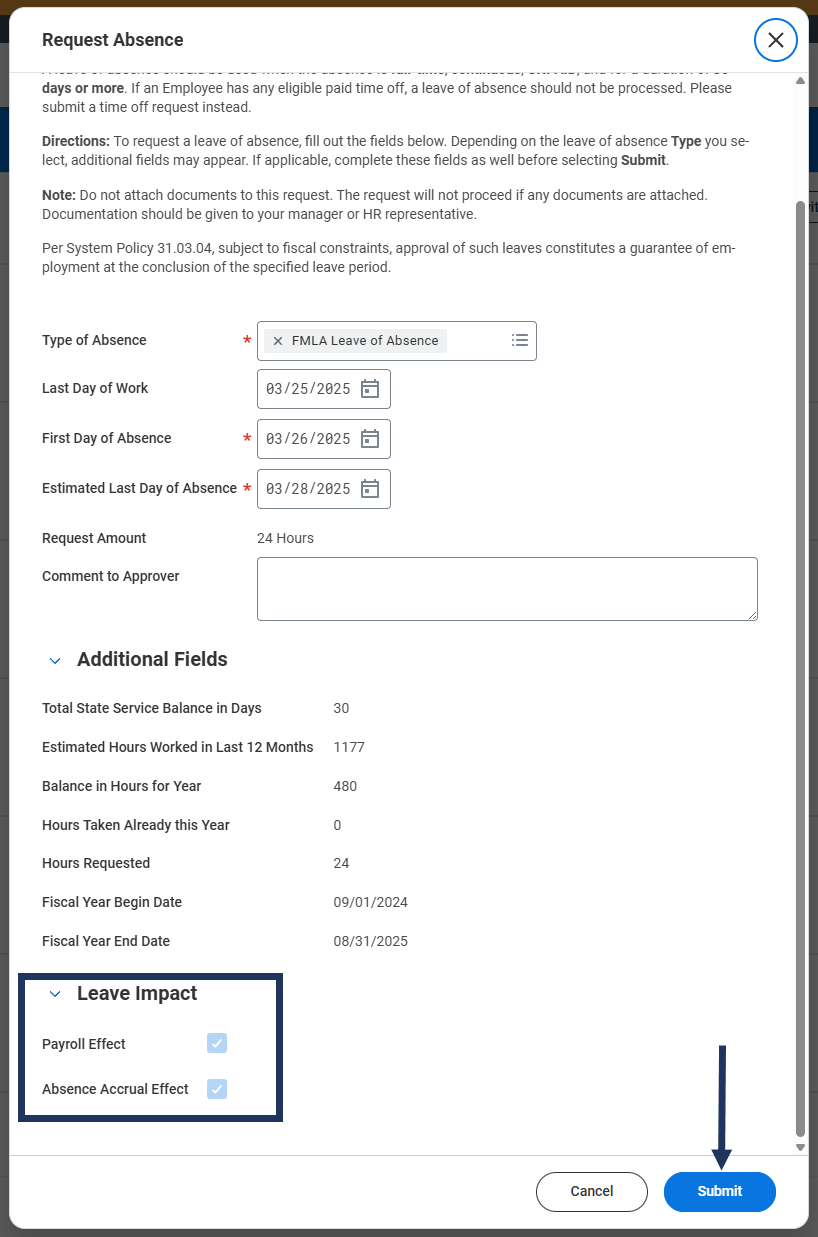
- Select Submit.
- The business process will route to the Manager for approval.
Navigate to the Up Next tab for the next steps in the process.
Up Next
Review Absence (Manager)
The Manager will receive and Inbox action item to Review Absence. The Manager will review the information provided including the Leave Impact, and Supporting Data sections.
After reviewing, the Manager can Approve, Send Back, Deny or Cancel the request.
Note: Do not upload files under Support Documents at this time. Medical documentation and other sensitive information must be kept separate from the Employee’s Workday profile.After the Manager has approved the Request for Leave of Absence, your member may require approval from the Department Head.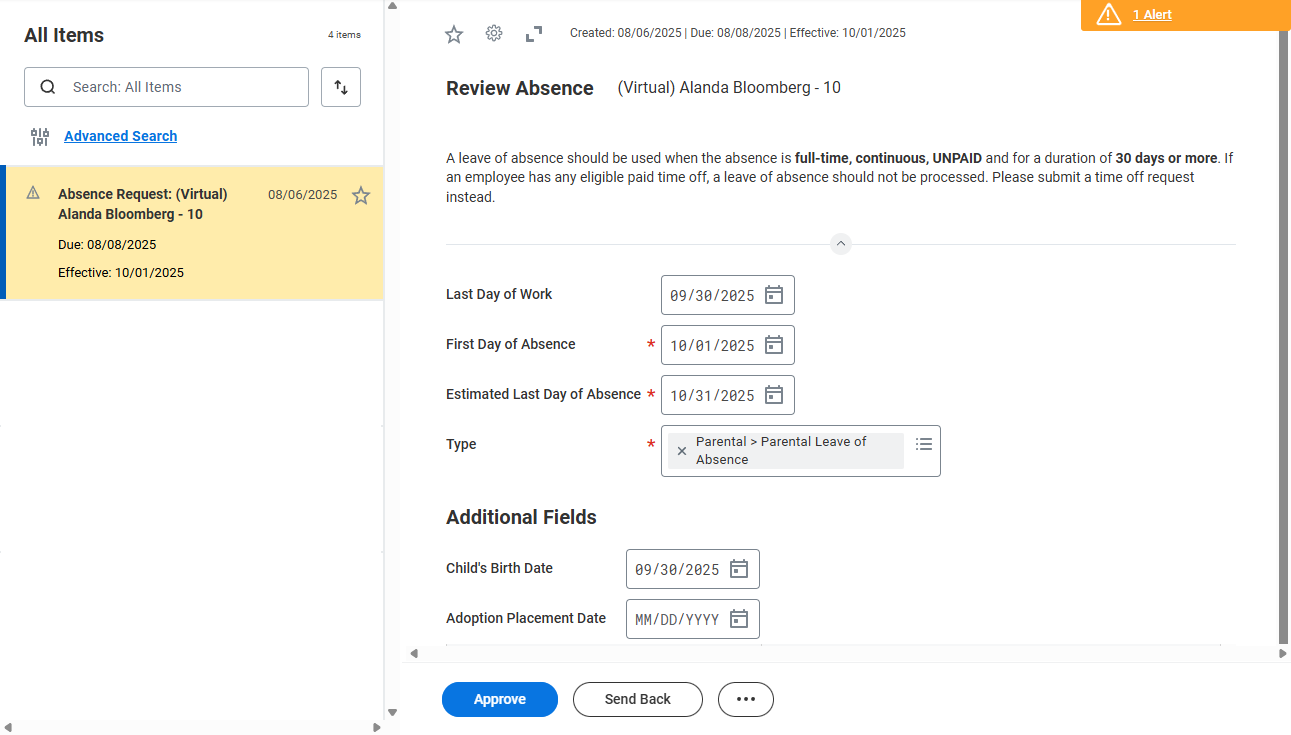
Change Benefit Elections (Employee)
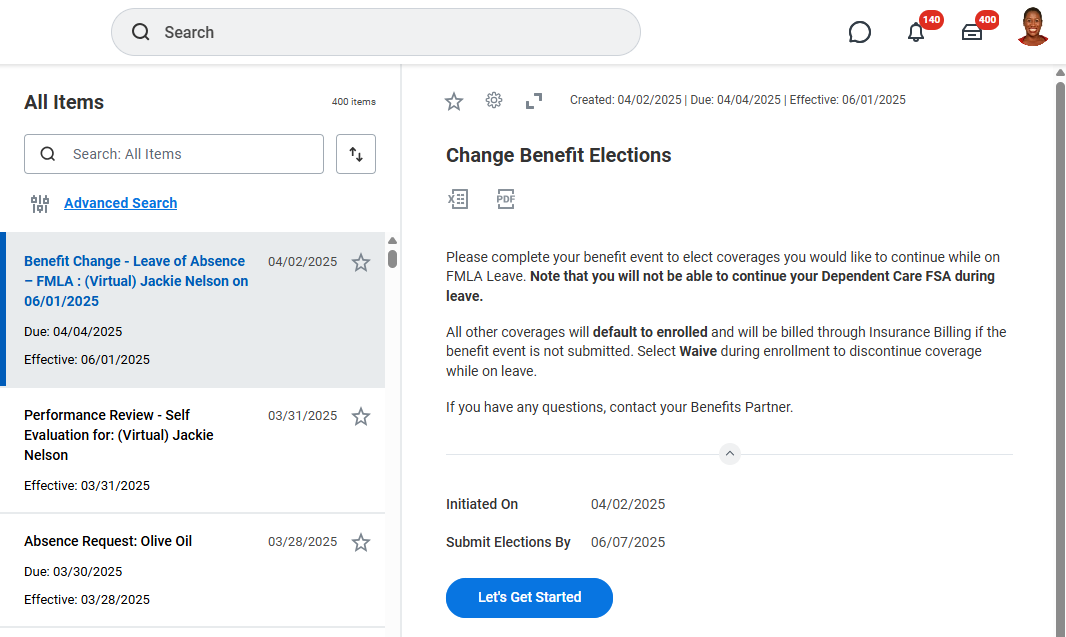
If the Employee has benefits, they will receive the action item Change Benefit Elections in their Inbox after the Manager has approved the request. For FMLA Leave requests, the same action item will route to the Benefits Partner, so they are aware that the employee has received this task.
If the Benefits Partner will be completing the Change Benefits Elections action item on behalf of the Employee, they must submit a signed paper enrollment form to System Benefits Administration indicating that the Employee authorized the change(s).
To complete the Change Benefits Elections action item select Let’s Get Started and update the information, as needed.
Note: This event may default coverages to waive, depending on the event type. The event must be completed for the Employee to continue coverages at full cost to the Employee.
Request Delegation Change (Employee)
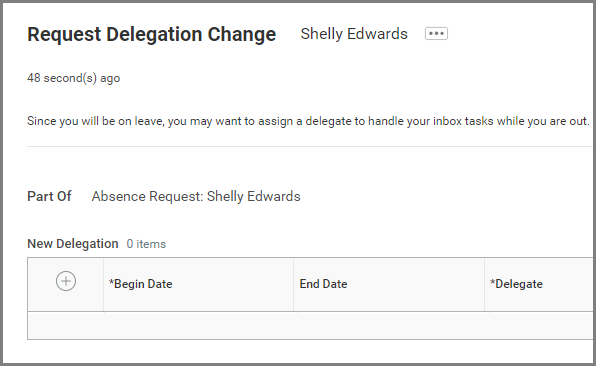
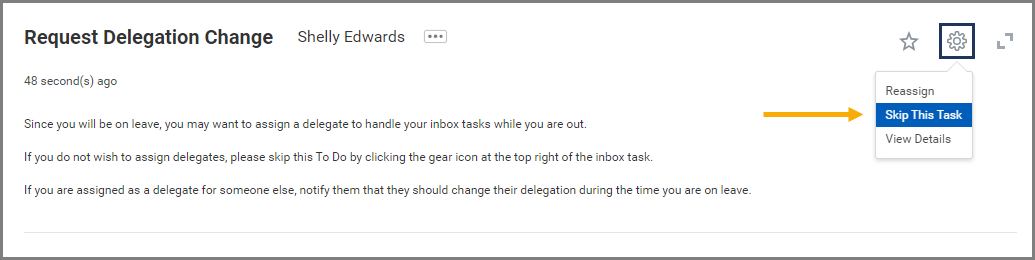
If the Employee has security roles other than Employee as Self (e.g. Manager, Timekeeper), they will receive the Action Item: Request Delegation Change to manage delegations for business processes while on leave.
To Add a Delegation
- If you wish to add a delegation, select the Plus Sign (+) icon.
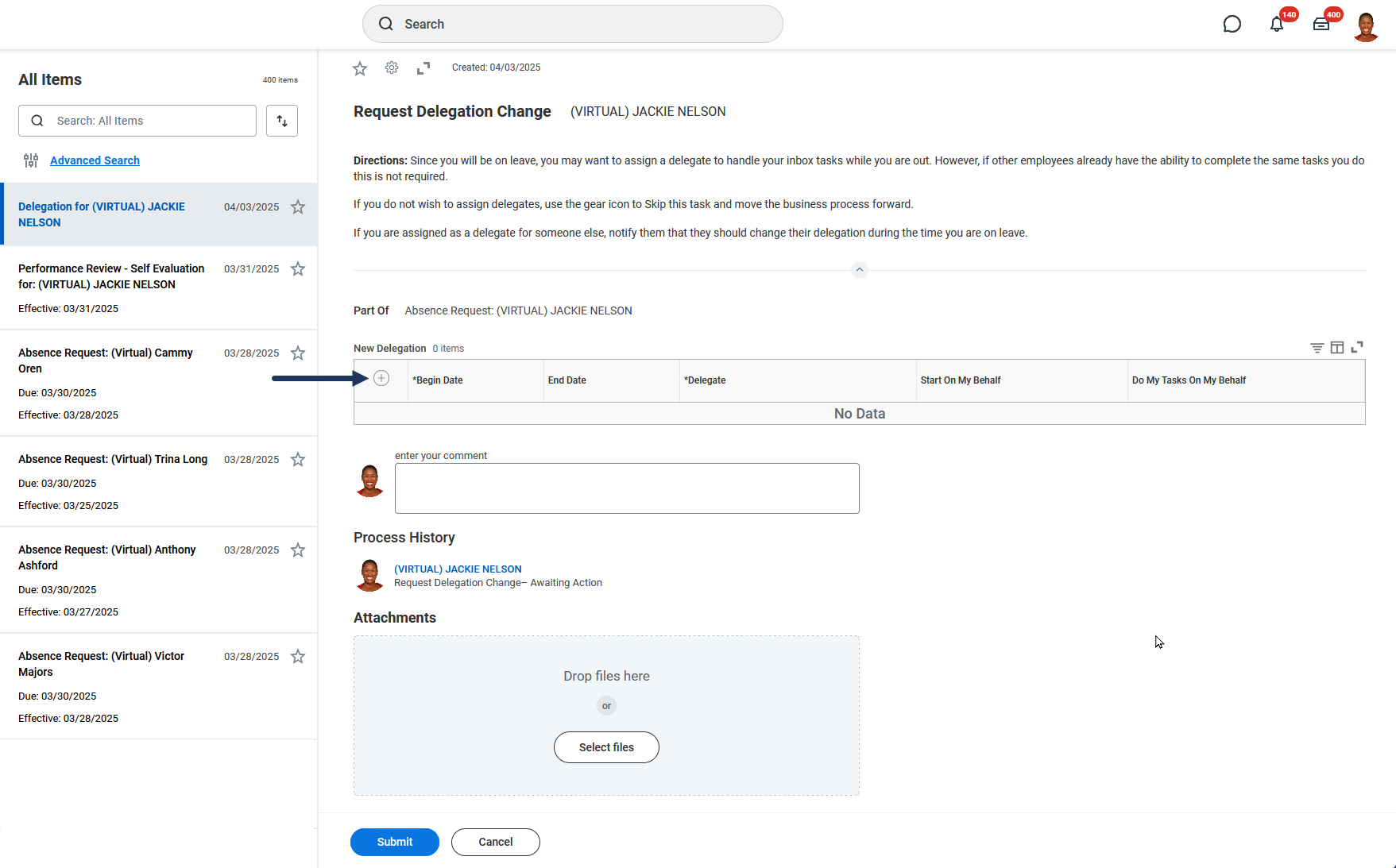
- Fill in the presented fields as necessary, except Start on My Behalf (which means you cannot delegate any initiation steps for a business process). For further details, see the job aid Manage Delegations on Workday Help.
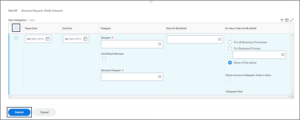
- Select Submit.

Important: You will need to communicate with any persons to whom you have delegated business processes as they will not receive a notification that you have added them as a delegate until a task arrives in their inbox.
No Delegations Needed (Skip This Task)
- If you do not wish to add a delegation, select the gear icon in the top right hand corner and select Skip This Task.
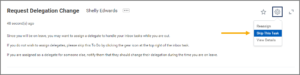 On the Skip This Task page, enter a reason you are skipping the task in the Skip Reason field (e.g., “no delegations needed”).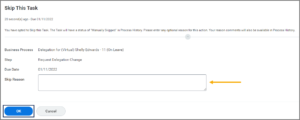
- Select OK.

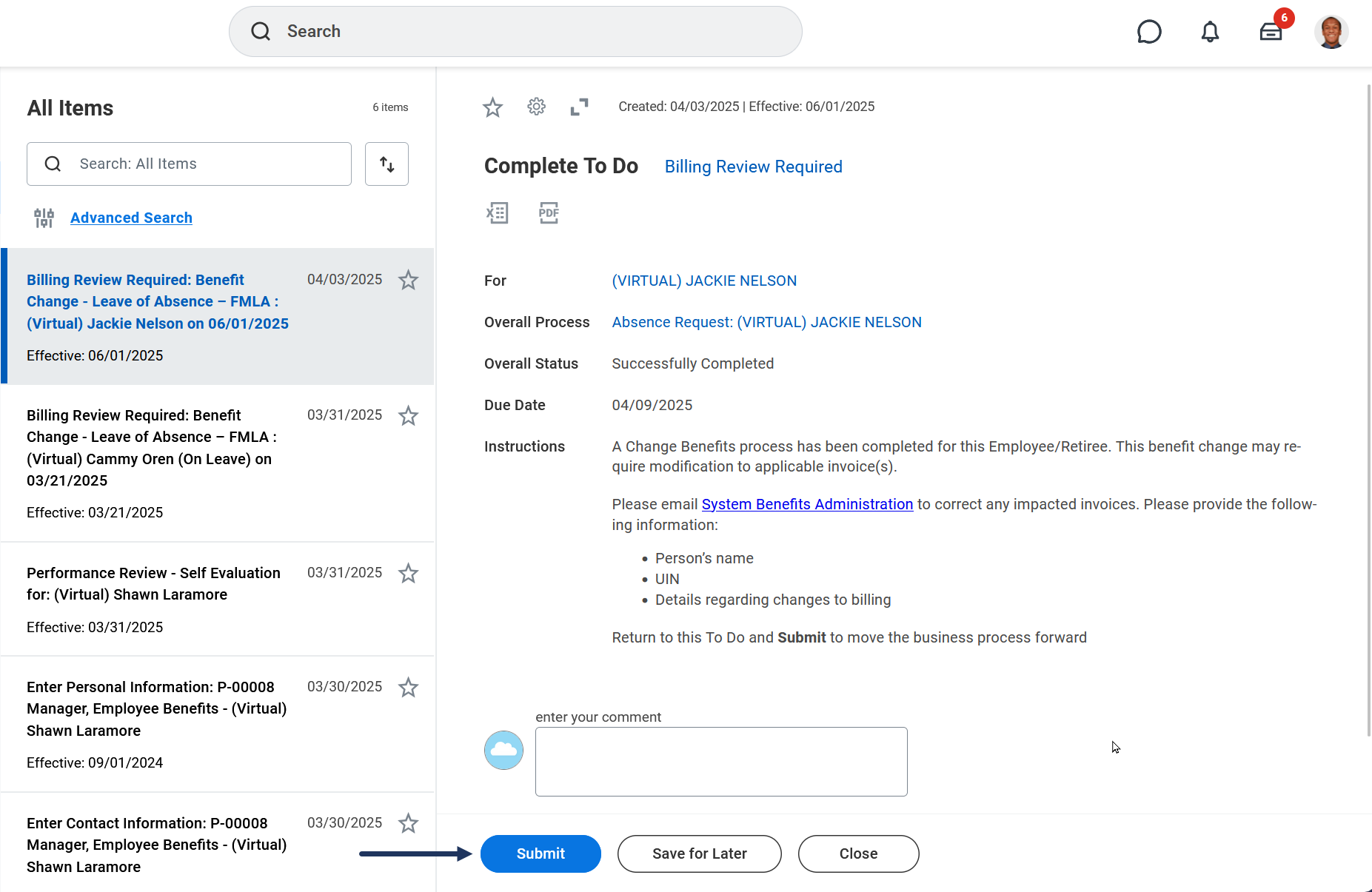
To Do: Billing Review Required (Benefits Partner)
The Benefits Partner will receive the To Do: Billing Review Required.
- The Benefits Partner is instructed to…
Please email System Benefits Administration to correct any impacted invoices. Please provide the following information:- Person’s name
- UIN
- Details regarding changes to billing
- Select Submit to complete the To Do.
Assign Roles to Worker (HR Partner)
If the employee has security roles that need to be delegated, the HR Partner will receive the Action: Assign Roles to Worker to add security roles to individuals who may need to do the work of the Employee who is on leave.


Review Changed Roll Assignment (Security Partner)
The Security Partner will receive an Inbox item to Review the Changed Role Assignments.
- The Security Partner will view the delegated role assignments and then select Approve.

Manage Business Processes for Worker (Business Process Administrator)
The Business Process Administrator will receive the Action: Manage Business Processes for Worker to address any business processes that are not yet complete and are awaiting action by the Employee on leave.