
This job aid outlines the activities for an HR Contact or HR Partner to initiate and complete the Start Job Change business process using a Data Change reason.
Start Job Change: Position Reclassification
Last updated on March 25, 2026
Page Loading...
Checking SSO...
Prerequisites
- We recommend you review the Job Change Reasons Reference Guide prior to beginning this process. Each job change reason determines which fields are available to edit during the Start Job Change business process.
- Reclassifying someone’s position does not change the position restrictions. Complete Edit Position Restrictions as needed prior to beginning this process.
- If the employee is a Graduate Fellow who’s position is changing to be non-benefits-eligible, the Working Graduate Fellow Custom ID must be added by the Benefits Partner before completing Start Job Change.
Important Information
- If the change moves the Employee from a Bi-Weekly pay group to a Monthly pay group, it is best practice to enter the effective date as the first day of a current bi-weekly pay day. This will help to avoid putting the Employee into two different pay groups within the same period resulting in a possible under- or over-payment for the Employee.
- If increasing or decreasing Academic Pay Period from or to 4.5 months or the scheduled hours from or to 20 hours, there may be an impact to the Employee’s eligibility for benefits and/or their State Group Insurance Contribution (SGIP). You may want to consult relevant regulations or discuss proposed changes with a Benefits Partner.
- Depending on whether your member has elected to participate in export control related processes, additional steps may be required.
Getting Started
This job aid walks through an example of completing a Start Job Change using the Position Reclassification reason. While Position Reclassification is just one type of data change, many of the steps, fields, and considerations shown in this example apply to other data change reasons as well. Use this job aid to better understand the overall process and key information that may be required when completing Start Job Change.
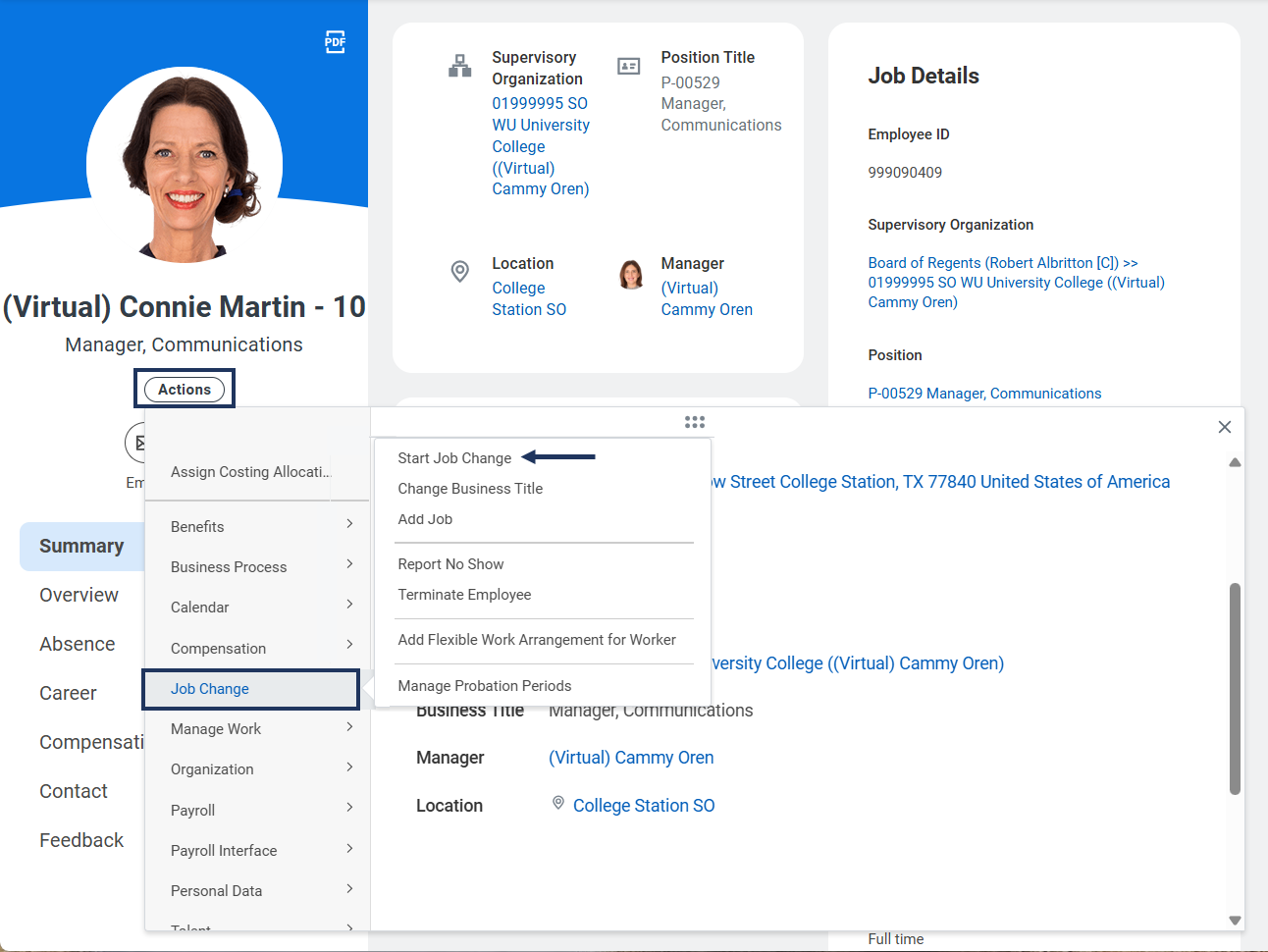
- Navigate to the Employee’s Worker Profile.
- Select Actions > Job Change > Start Job Change.
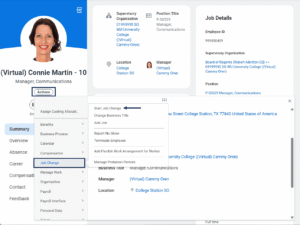
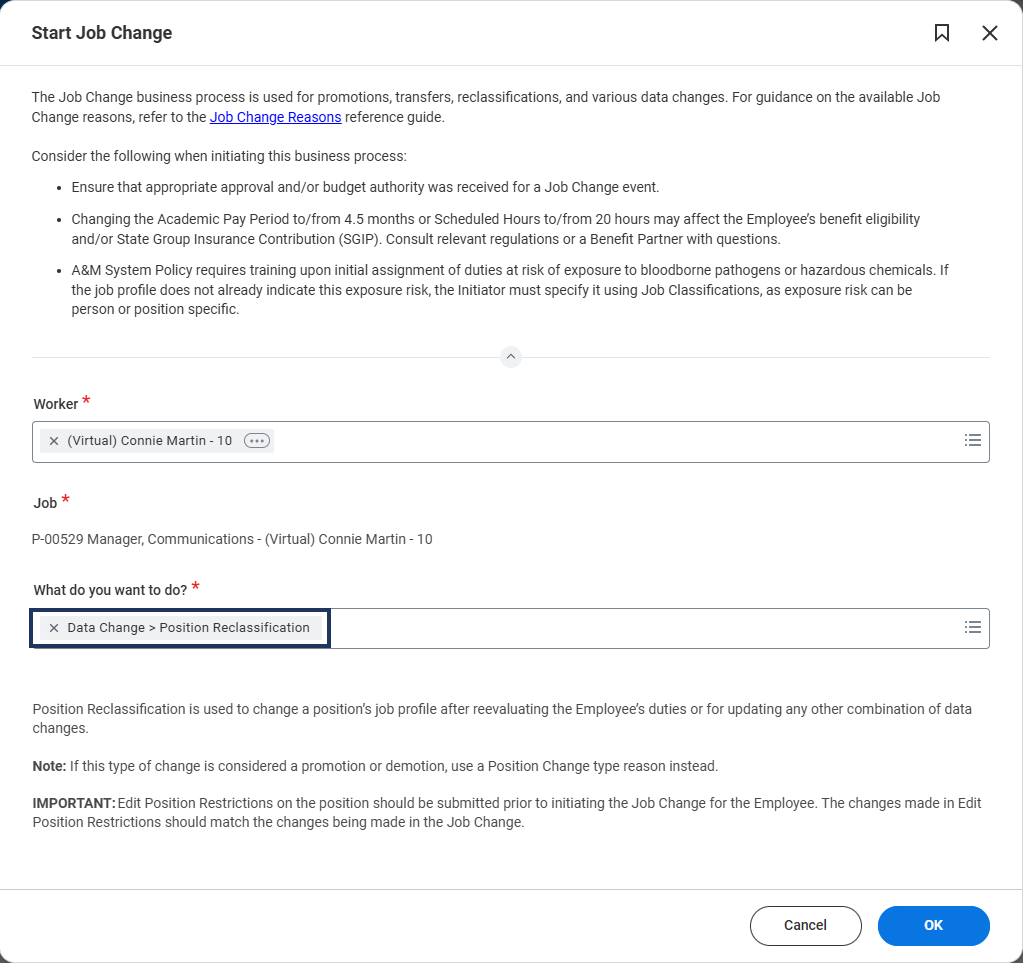
- The Worker field will be pre-populated.
- In the What do you want to do? field, select the reason that best matches the change you are making. Each reason populates only the fields specific to that change, which will be displayed on the next page. Review the Job Change Reason reference guide to help make your selection.

- Select OK.
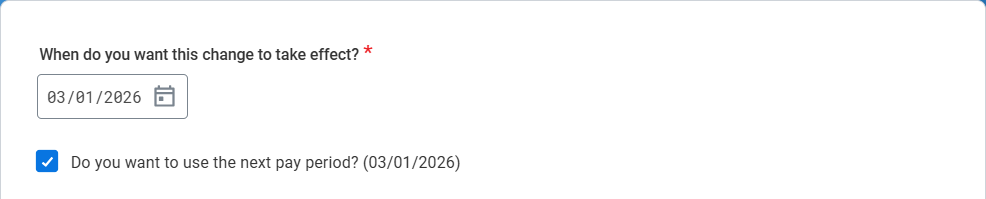
- When you do want this change to take effect? Enter the appropriate date.
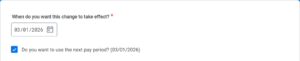
- In the Position section, the only field that appears is Select a position for this change. This field auto-populates with the worker’s position. For a Position Reclassification, or any data change other than Job Overlap Period, this field should not change.

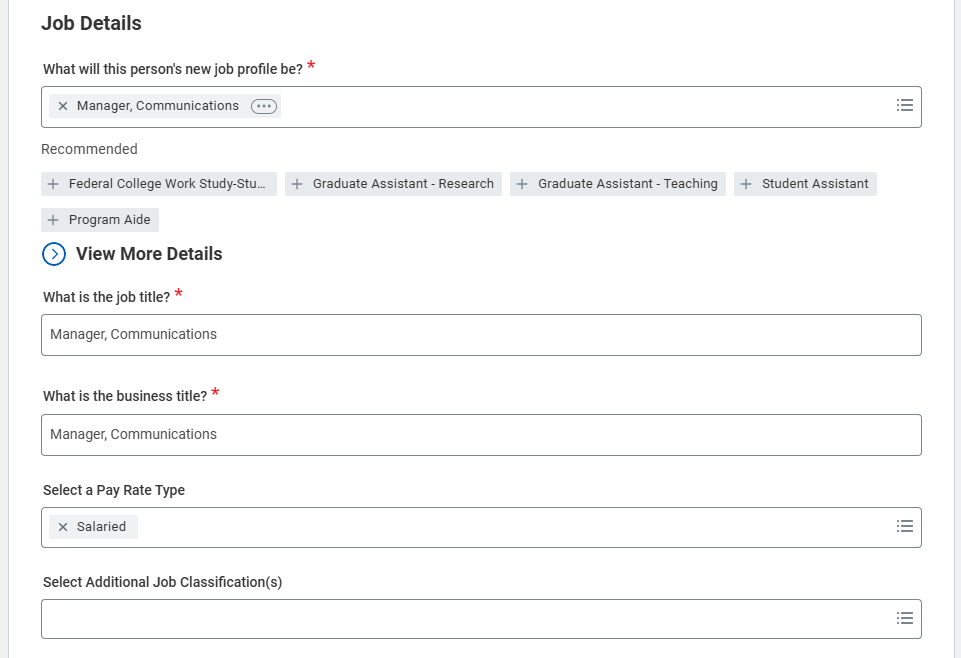
- Based on the selected position, the following sections will auto-populate.
- What will this person’s new job profile be?
- What is the job title?
- What is the business title? Edit this field if the business title should be different from the job title.
- Select a Pay Rate Type.
- Select Additional Job Classification(s). Use this field to override or add job classifications on the position if needed.IMPORTANT: For positions that require risk training, be sure to select the Additional Job Classification: Exposure Risk Training, if the job classification is not already assigned at the Job Profile level.
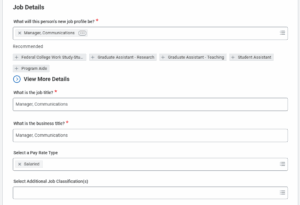
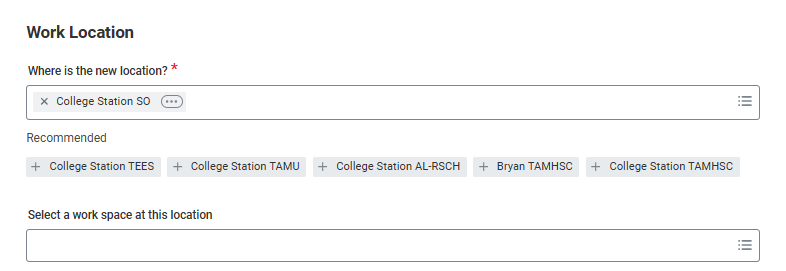
- In the section Administrative Details section, review and edit the fields as needed:
- Employee Type.

- Where is the new location? This is the geographic city with the Member Acronym, e.g. College Station SO.
- Select a work space at this location. Optional.
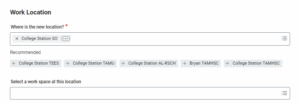
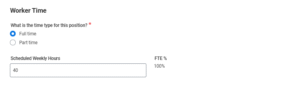
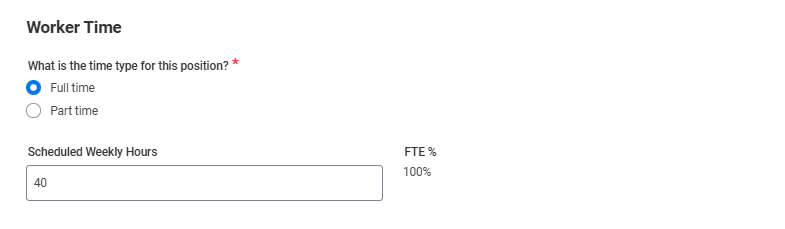
- In the Worker Time section, review and edit the fields as needed:
- What is the time type for this position?
- Scheduled Weekly Hours. For Full time employees, do not edit. For Part time employees, edit as needed.
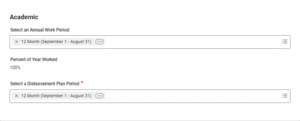
- In the Academic section, select an Annual Work Period and Disbursement Period. These two fields must match.
- Select Submit.


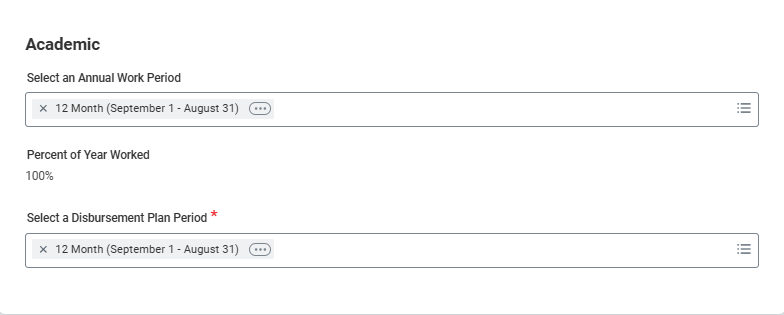
For the data change reasons Job Classification Change, Job Profile Change, Location Change, and Position Title & Business Title Change, the business process will route to the HR Partner for review and be complete.
For the data change reasons that require a Compensation change (Hours or Work Period Reclassification, Job Overlap Period, and Position Reclassification), follow the steps provided in the next section.
Navigate to the Up Next tab for your next steps in the process.
Up Next
Compensation
The initiation is complete and Workday will now automatically route you to the Compensation subprocess. You will receive a notification stating We need more information to complete this change.
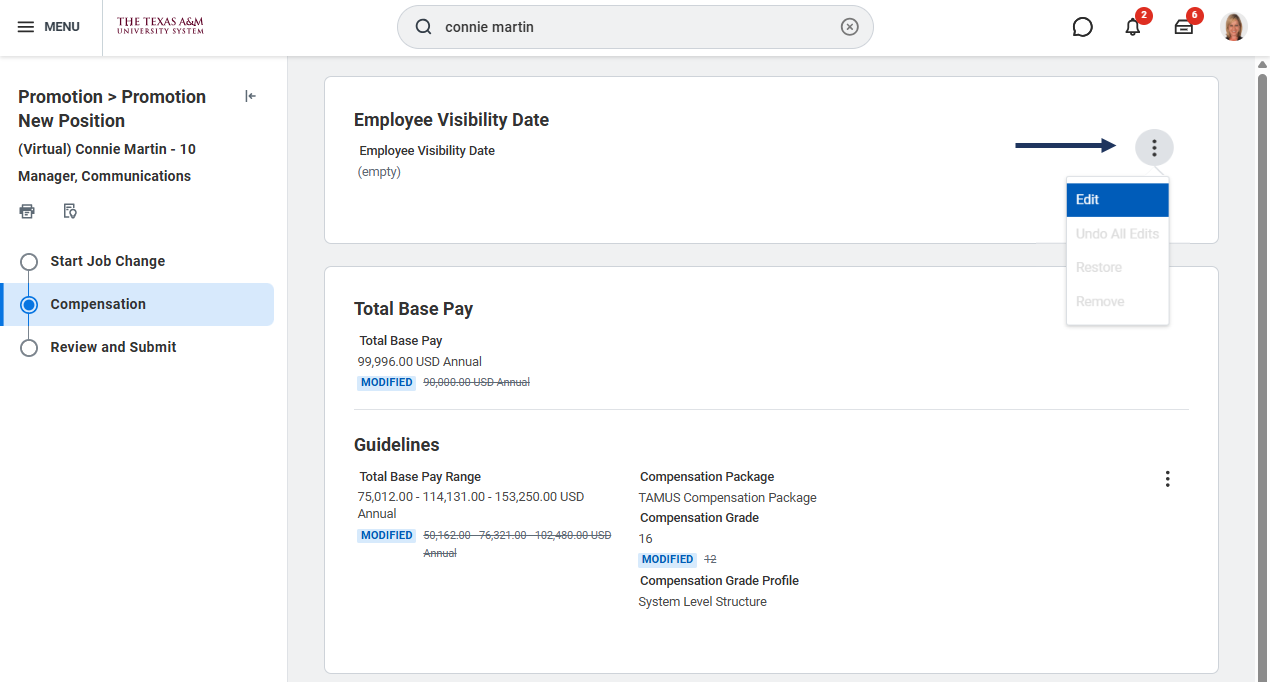
- Review, add or edit the information. Many fields will auto-populate based on the job profile. To edit any section, select the Related Actions menu next to the section you would like to edit and select Edit.
- Employee Visibility Date. Optional. Enter the date the Employee should see their change in Compensation. If left blank, Employee Visibility Date will default to the Effective Date of the Start Job Change.
- Guidelines. Use the Guidelines to update the Plan Assignment.

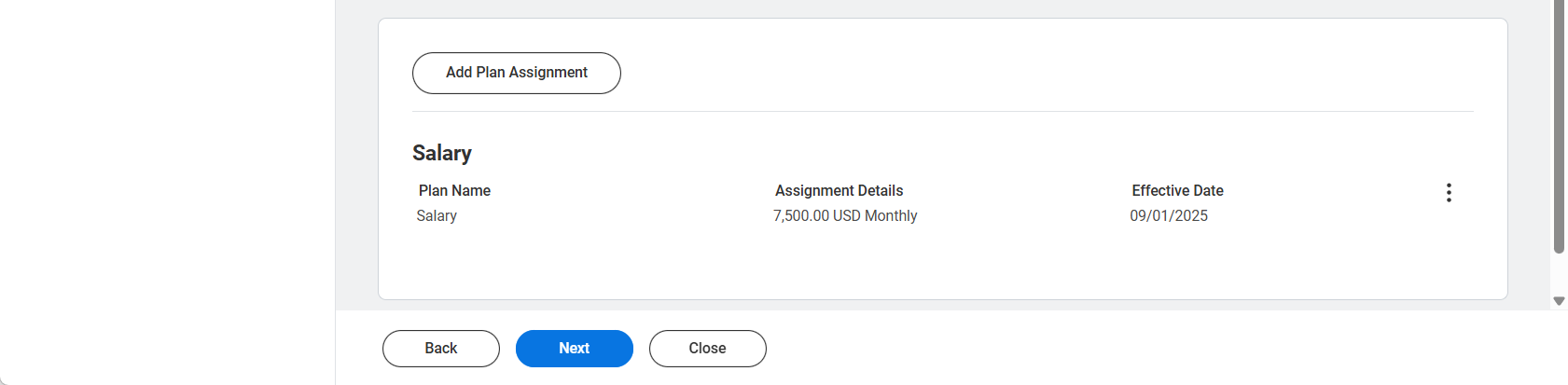
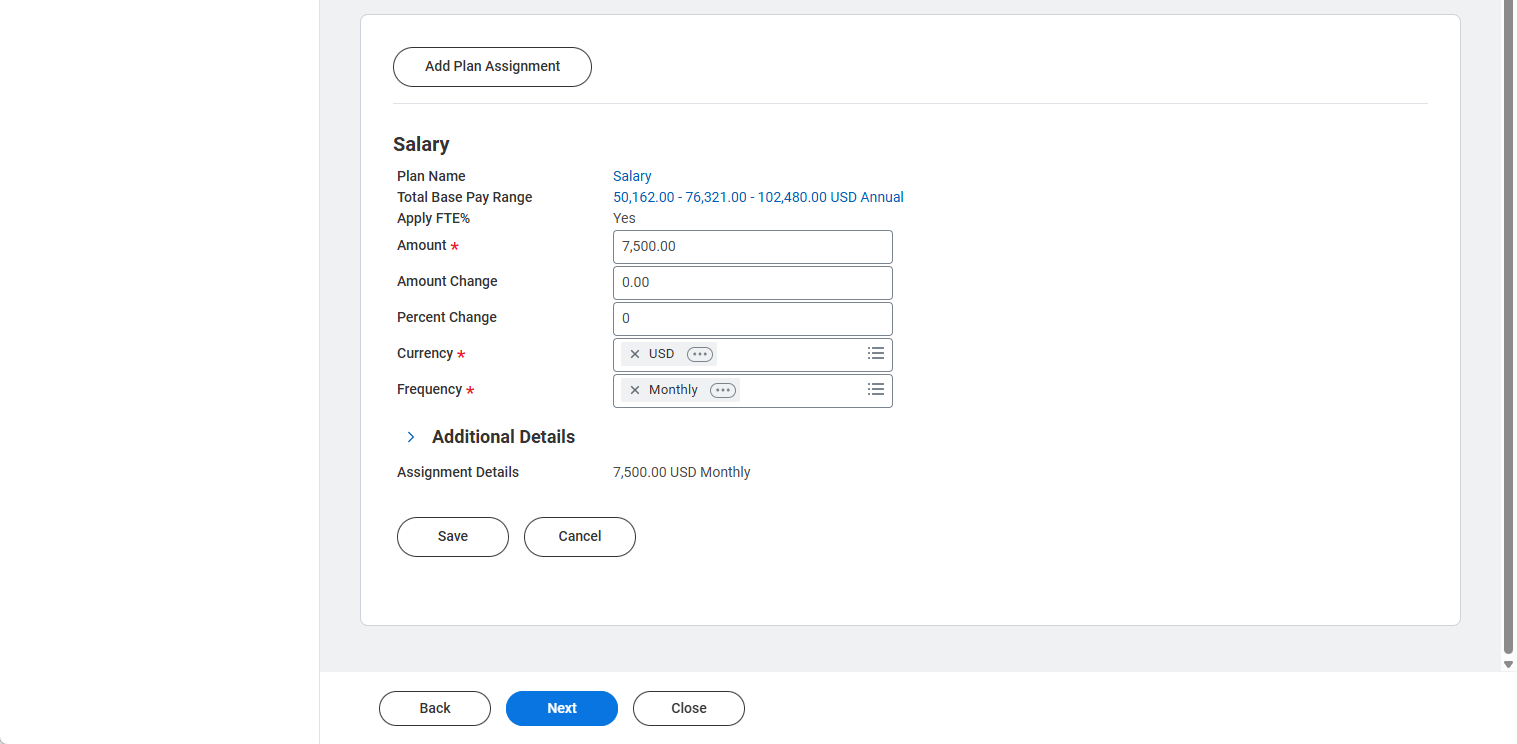
- Plan Assignment.
- To edit the Salary or Hourly Plan, select the Related Action menu and select Edit.

- Make changes as needed.
- To edit the Salary or Hourly Plan, select the Related Action menu and select Edit.
- Select Next.
- On the Review and Submit page, review all of the changes you made to ensure that you have entered everything correctly.

- Select Submit.
The required next steps will vary based on the reason for this change and member selection.
Upcoming Reviews/Approvals
Either the HR contact or HR partner will receive an inbox task to review. Additional security roles such as Department Head or an Executive Approver will receive an inbox task to approve the business process.
Note: When multiple Executive Approvers are assigned to an organization, all Executive Approvers will be required to approve select tasks to move the process forward.
Any onboarding activities required as a result of changes made during this business process will route to the Employee.
Potential Tasks and To Dos
- The HR Contact or HR Partner will receive a To Do Offboarding Procedure if there is a change in location.
- If the Employee is no longer leave benefits eligible, the Absence Partner will receive the To Do Determine Time Off Payout for Change Job to evaluate the potential payout for any Time Off balance.
- If the Employee is Faculty and their Annual Work Period has change to or from 12 month, the Absence Partner will receive the To Do Move Time Off Balance.
- The HR Contact or HR Partner will receive a To Do Other Onboarding Procedures if the job has a location change.
- The Benefits Partner will receive a To Do Initiate Medical Change Only Benefit Event for Retiree if the Worker is a Retiree enrolled Medicare A&B and there was a change in their benefits eligibility.
- The Payroll Partner will receive a To Do Assign Pay Group if the Worker’s pay rate type changed.
Assign Costing Allocation (Budget Contact)
The Budget Contact will receive the Assign Costing Allocation task. This will only route if the reasons Hours or Work Period Reclassification, Job Overlap Period, or Position Reclassification is used.
For more information about how to complete this task, use the Assign Costing Allocations job aid or the Costing Allocation quick reference guide on Workday Help.
This completes the Start Job Change business process using the reason Position Reclassification.